
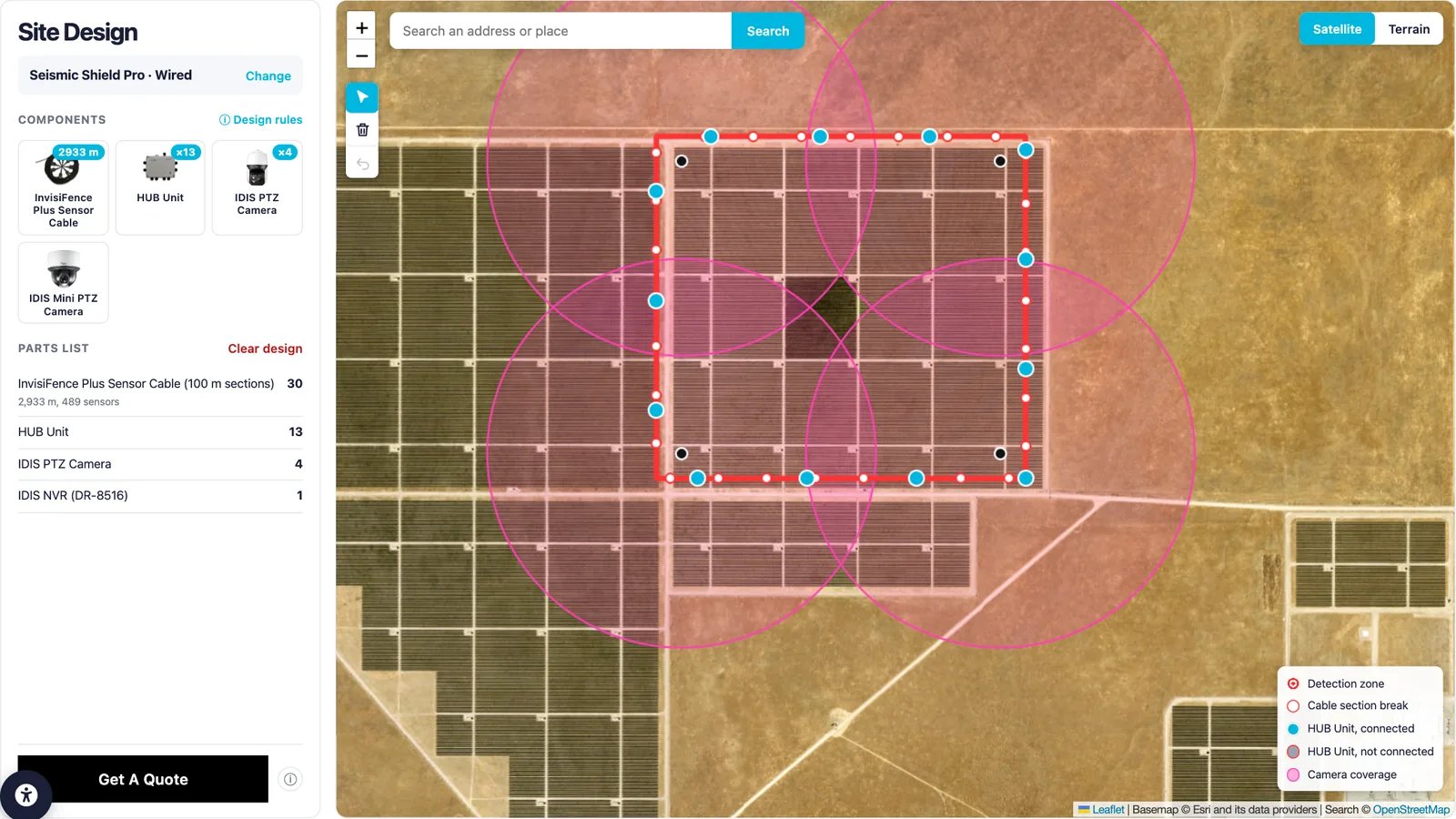
Most security projects start with a rough description: about 300 meters of fence, a gate, maybe a few cameras. Before anyone can price the job, there's a round of emails asking for site plans, photos, and measurements. Our new Site Design tool shortens that loop.
Site Design is a free planning tool on our website. You find your site on a satellite map, choose a SensoGuard system, and place sensors and cameras where you want them. The tool counts the parts for you, checks the layout against our design rules, and lets you send the whole design to our team in one short form.
What Is SensoGuard Site Design?
Site Design is a map-based planner for three SensoGuard systems. Each one shows only its own components, with their real coverage drawn on the map:
- Seismic Shield for homes and private estates, with a wired sensor line or AIO X wireless sensors, a HUB unit, and fixed IP cameras.
- Seismic Shield Pro for large perimeters, with InvisiFence Plus sensor cable or AIO XR wireless sensors, HUB units, and IDIS PTZ or Mini PTZ cameras.
- CovertEye for remote sites, using CovertEye 4G and 4G Compact cameras over cellular, or CovertEye RF cameras with a base station.
There's nothing to install and no account to create. Your design is saved in your browser, so you can close the page and pick it up later on the same device.
How Does Site Design Work?
Planning a site takes four steps, and the panel on the left walks you through them in order.
1. Find Your Site
Search for an address or a place name, then zoom in on your property. You can switch between satellite imagery and a terrain map, whichever makes your boundaries easier to see.
2. Choose a System and Type
Pick Seismic Shield, Seismic Shield Pro, or CovertEye. Then choose how it connects: wired or wireless for the seismic systems, cellular or RF for CovertEye.
3. Place Your Components
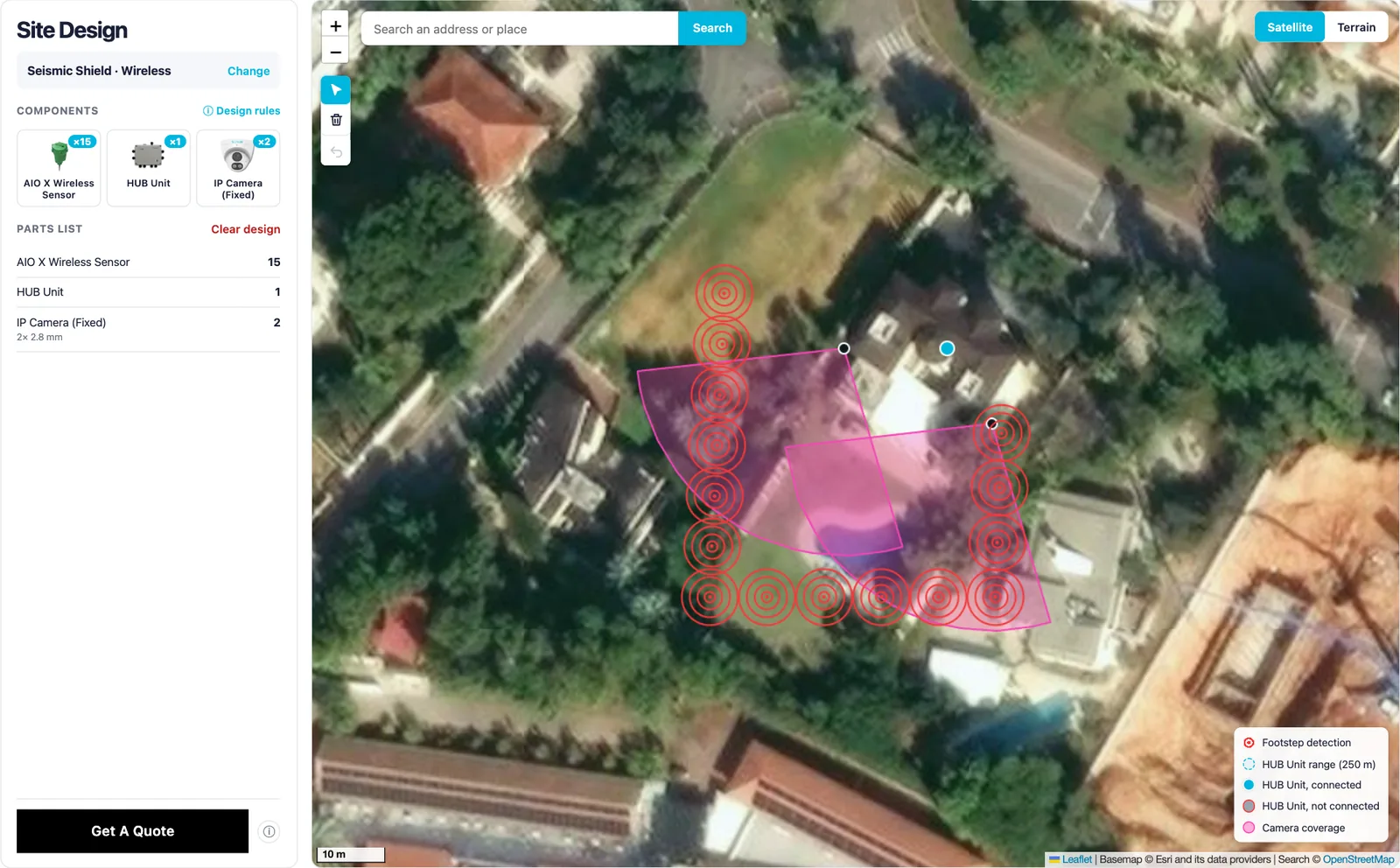
Click along your perimeter to lay a sensor cable, or click to drop wireless sensors, HUB units, and cameras. Drag anything to move it. To aim a camera, click it and drag its direction handle, and you'll see its coverage on the map. Fixed IP cameras also let you pick a lens, from a wide 2.8 mm to a narrow 12 mm, just like when you buy one. Need another one just like it? Click Duplicate. Made a mistake? Undo it with Ctrl+Z, or start over with Clear design.
4. Check Your Parts List
The parts list updates as you work. It counts cable sections, sensors, HUB units, and cameras, and for Seismic Shield Pro it adds the IDIS NVR you'll need automatically. The count on each component button shows how many you've placed.
Design Rules Built Into Every Layout
A parts list only helps if the layout can actually be installed. That's why Site Design checks every design against the same rules our engineers use:
- Wired sensors sit every 6 m, the cable comes in 100 m sections, and each HUB handles up to 38 sensors and must sit within 15 m of the cable.
- Wireless sensors must be within 250 m of a HUB, with up to 30 sensors per HUB. The AIO X covers 50 m² for footsteps. The AIO XR covers 250 m² for footsteps and 2,500 m² for vehicles and digging.
- Fixed IP cameras reach up to 50 m. The IDIS Mini PTZ covers a 100 m radius, and the IDIS PTZ covers 400 m, with one NVR for every 16 cameras.
- CovertEye RF cameras must be within range of a base station, with up to 16 cameras per base station.
When something breaks a rule, an issue badge appears next to the parts list. Click it to see what's wrong, and the tool highlights the components involved on the map.
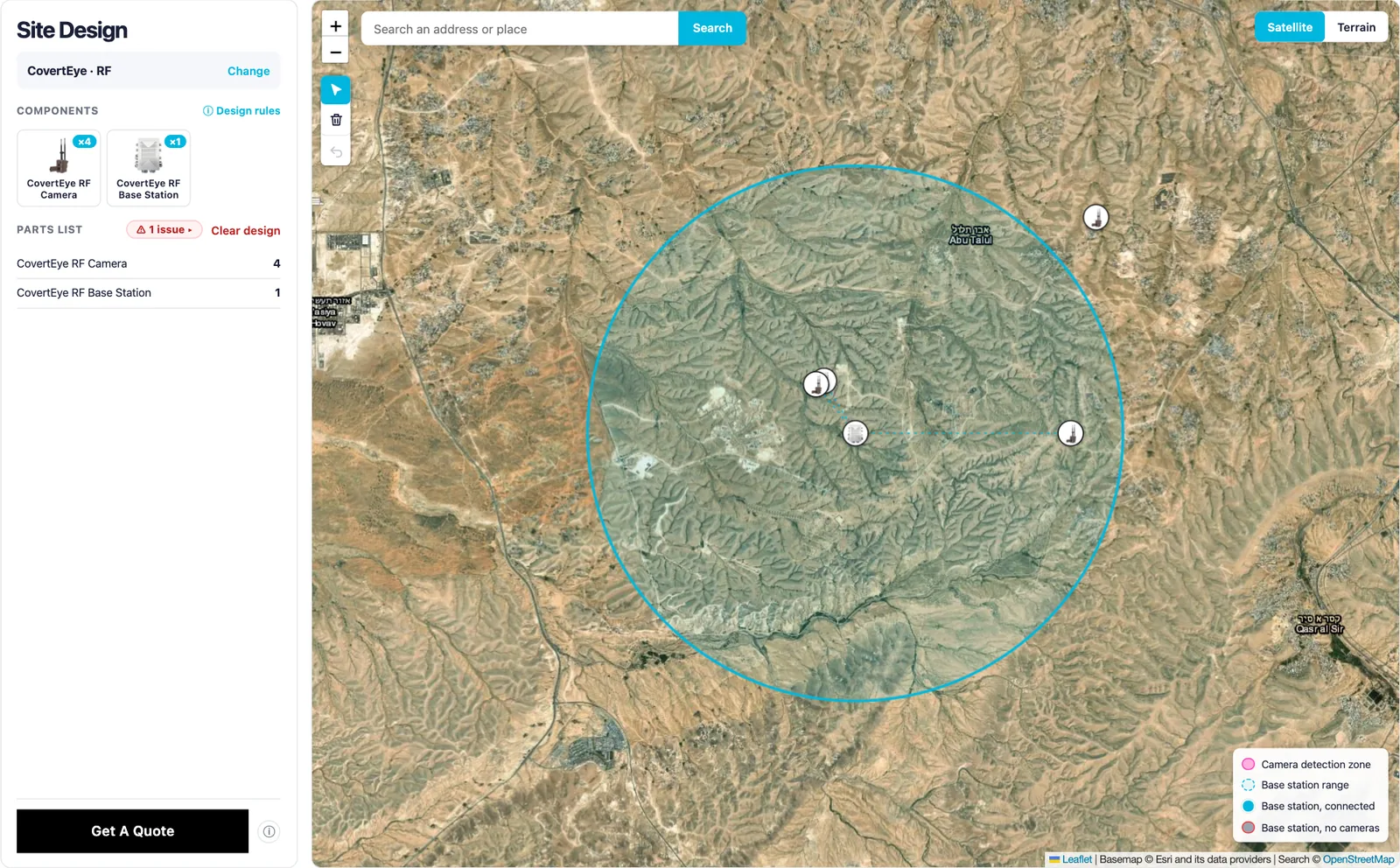
One note on RF: the base station's transmission range is approximate and depends on the terrain. It reaches up to 5 km with clear line of sight, and typically 1–3 km in mountains or forest. You can adjust the range on each base station to match your site.
From Design to Quote
When your layout is ready, click Get A Quote. The form is short: your name, email, and country, the type of site and your timeline, and your main goal with any notes you'd like to add.
Your design goes with it. We receive a PDF of your layout together with the parts list, so our team sees exactly what you planned and where. You don't need drawings, photos, or measurements to get started.
Once you've sent it, you can download the same PDF for yourself. The first page shows your whole site with the parts list. If some components are too small to see in the overview, such as cameras inside a 5 km RF range, the PDF adds close-up pages for them.
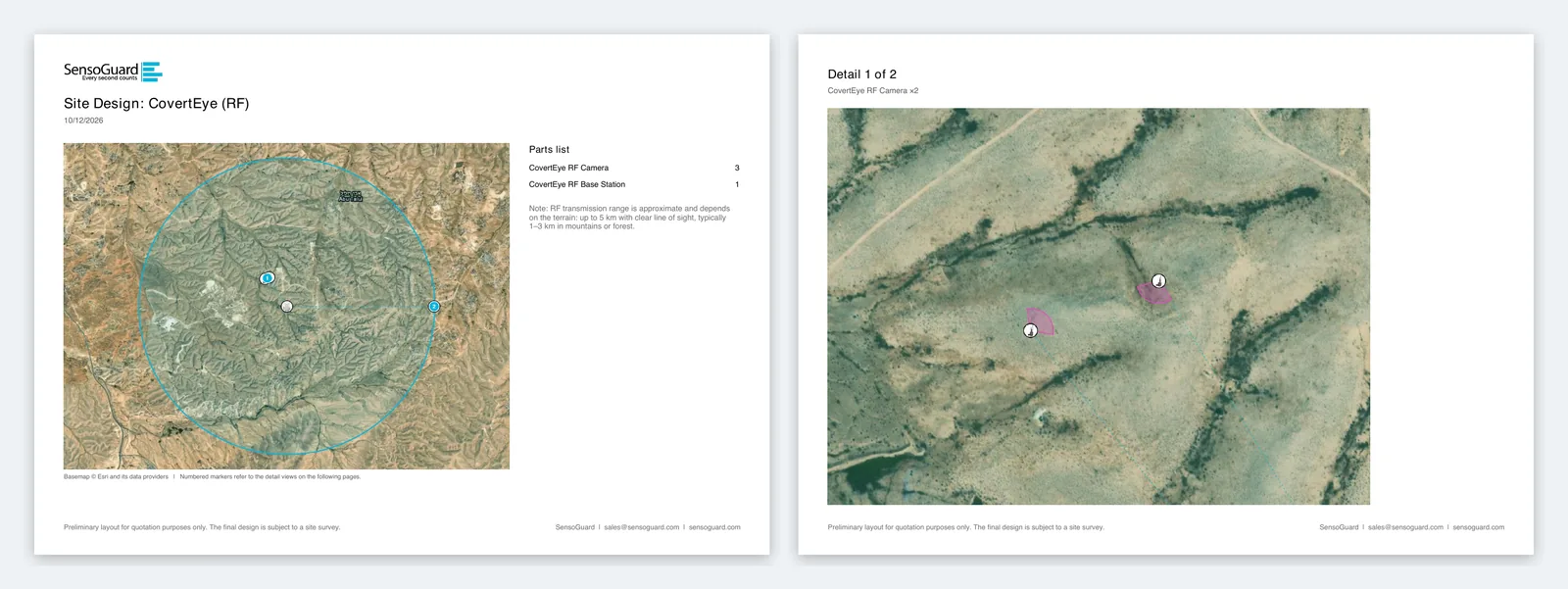
Every design is a starting point, not a final plan. Our engineers review it, may suggest changes based on soil, terrain, or existing infrastructure, and confirm the final layout with a site survey.
Who Is Site Design For?
Anyone planning perimeter protection can use it, and it's especially useful for:
- Homeowners who want to see how residential perimeter protection would fit around their garden.
- Solar farms and critical infrastructure operators planning long perimeters, from solar farms to substations and utilities.
- Border and remote sites that need long-range detection or covert cameras with no local infrastructure.
- Integrators and consultants who want to sketch a customer's site before the first meeting.
Send Us Your Project
Have a site you need to protect? Open Site Design, draw your perimeter, and send us the design with your project details. The more you show us on the map, the more accurate your quote will be, and the faster we can get back to you.
Frequently Asked Questions
Is SensoGuard Site Design free?
Yes. Site Design is free to use and doesn't need an account or a download. It runs in your browser, and you only share your details when you choose to send your design for a quote.
Which systems can I design with Site Design?
You can plan Seismic Shield (wired or wireless), Seismic Shield Pro (wired or wireless) and CovertEye (cellular or RF). Each system shows only the components that belong to it, with their real coverage on the map.
Is the design final?
No. The design and parts list are preliminary and are meant for quotation. Our engineers review every design, and the final layout is confirmed after a site survey.
Can I come back to my design later?
Yes. Your design is saved in your browser on the same device, so you can close the page and continue later. Use Clear design when you want to start over.
Does Site Design work on a phone?
It opens on any device, but it works best on a desktop or laptop, where you have room to place components and aim cameras precisely on the map.